
Wi-Fi QR Code: How It Works and How to Make One Safely
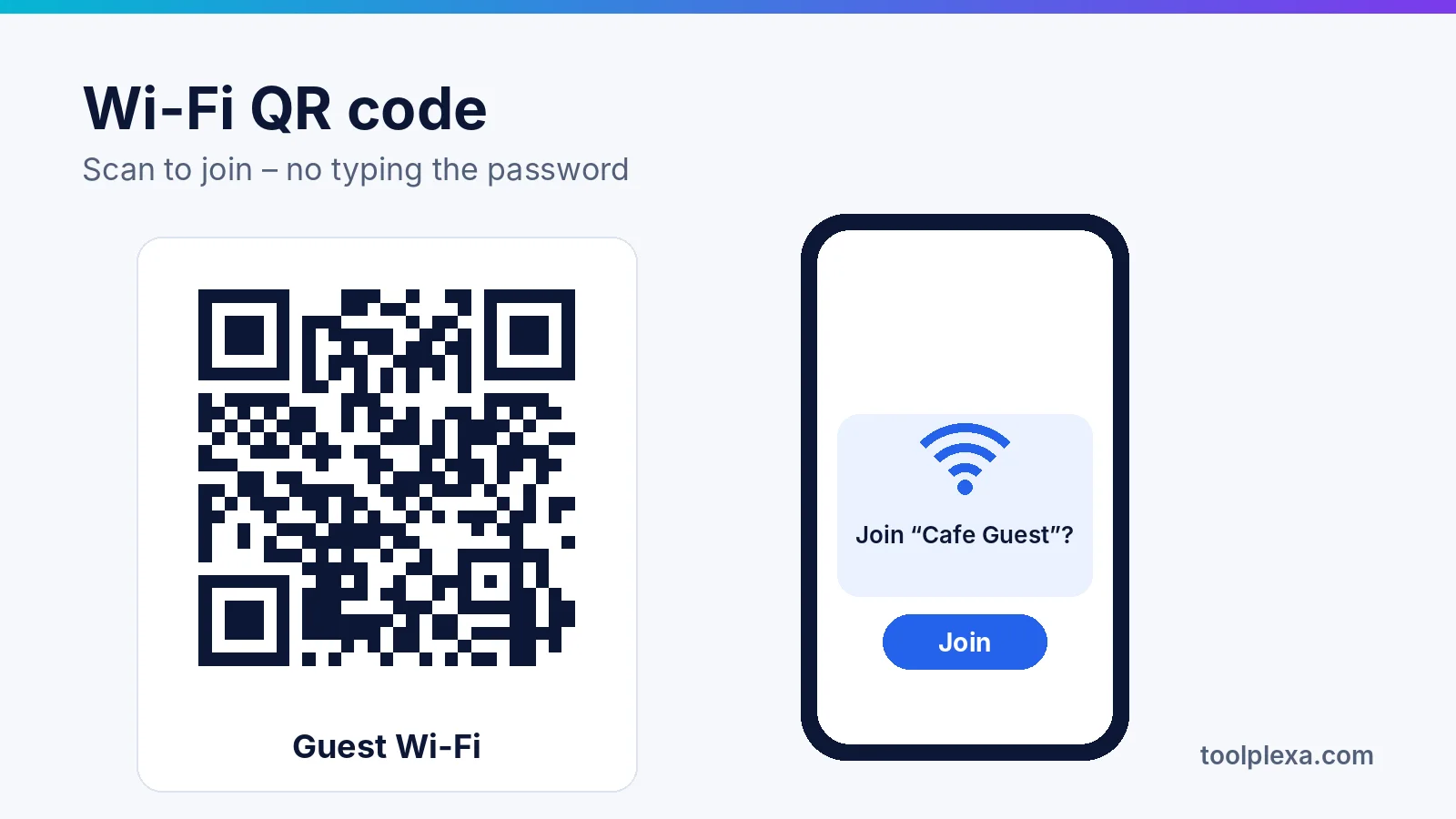
A Wi-Fi QR code lets anyone join your network by pointing their phone camera at it – no spelling out a long password, no "is that a zero or the letter O?". It is ideal for a café counter, an office reception, a rental flat or your own living room.
Before you print one, it helps to know what is actually inside it, because that decides both whether it will scan and how safe it is.
What is inside a Wi-Fi QR code
A Wi-Fi QR code is just a short line of text in a format first set out by the open-source ZXing barcode project and now read by most phone cameras. It looks like this:
WIFI:T:WPA;S:Cafe Guest;P:latte2026;;
| Field | Meaning | Values |
|---|---|---|
T | Security type | WPA, WEP or nopass for an open network |
S | Network name (SSID) | Exactly as it appears on your router |
P | Password | Left out for open networks |
H | Hidden network | true if the name is not broadcast |
The code ends with two semicolons. If the network name or password contains any of the characters \ ; , : ", each one must be preceded by a backslash, or phones will read the wrong value. A good generator, including the Wi-Fi QR Code Generator, does this for you.
How to make one
- Check your network name and password on the router or its app. Both are case-sensitive, and a trailing space counts.
- Choose the security type. For almost every home and office router (WPA2 or WPA3 Personal), choose WPA. Pick None only for an open network, and WEP only for very old equipment.
- Tick "hidden" only if your router does not broadcast its name.
- Create the code and test it with two different phones before printing – ideally one Android and one iPhone.
- Print it large enough. About 3 × 3 cm is fine on a table card; for a wall poster read from a distance, go bigger and keep a plain white border around the code.
Which phones can scan it?
Recent iPhones and most Android phones read Wi-Fi codes straight from the camera app and show a "Join network" prompt. On older Android phones, use Google Lens or a scanner app. If a phone only shows the text instead of offering to connect, the code is usually fine and the phone's camera app is the limit – type the details from the text instead. You can also check exactly what a code contains with the QR Code Scanner.
When a code doesn't work
- "Unable to join" – the password or network name has a typo, or the password was changed after the code was printed.
- Special characters – a
;or:in the name or password was not escaped. - WPA3-only routers – some phones handle WPA3-only networks poorly from a QR code. Turning on the router's WPA2/WPA3 mixed (transition) mode usually fixes it.
- Quotation marks – some generators wrap the values in quotes, which certain phones treat as part of the password. Remove them.
- Print problems – a code that is too small, blurred, low-contrast or laminated with glare will not scan reliably.
Keep your network safe
The password is inside the code as plain text. Anyone who scans it – or takes a photo of it – can read the password, even without joining.
- Use a guest network for any code on public display. Most routers can create one that keeps visitors away from your computers, printers and cameras.
- Change the guest password now and then, and reprint the code when you do.
- Never share your main network this way in a shop, office lobby or rental.
- Prefer a generator that works in your browser, so your password is not sent to a website's server. ToolPlexa's QR tools create the code on your device.
Other useful QR codes
The same idea works for links, phone numbers and product labels. Use the QR Code Generator for a link to your menu or review page, and the Barcode Generator for shelf and stock labels.
Source: ZXing project wiki – Barcode Contents (Wi-Fi network config)